Showing posts with label iPhone app. Show all posts

Tuesday, May 6, 2014

How to Send Email Within Your iPhone Application

This article provides a tutorial to help you send an email from inside your iPhone application using the iPhone SDK built-in APIs.
The iPhone SDK provides the built-in MessageUI framework, which greatly simplifies the implementation of email functionality within an iOS application.

Creating a Simple Email UI

Create a simple app with a UI View Controller and call it the name, "SimpleEmailAppViewController". Then, add a button to the UIView by dragging it from the interface builder, and rename the button title to "Contact Us".

When the user taps the "Contact Us" button, the app will display the email user interface.

Making Connections to the User Interface

In order to make the connections from the "Contact Us" button to an action, you need to select the SimpleEmailAppViewController.xib file from the Project Navigator then go to the Interface Builder. Switch to the Assistant Editor while hiding the Utility area. Once this is done, the interface and its corresponding code are displayed side by side. Next, press and hold the key and click the "Contact Us" button and
drag it towards the "SimpleEmailAppViewController.h. As you place the pointer just below @interface and before the @end, and as you release the mouse button, you will notice a prompt that allows you to insert an outlet and action.
Select "Action" for "Connection" and enter "sendEmail" for "name" as shown below.

The event can be kept as "Touch Up Inside". When the user clicks the "Contact Us" button and lifts up the finger inside the button, it will result in invoking the "sendEmail" method.  Once, you click Connect to confirm the changes, Xcode automatically adds the method declaration into "SimpleEmailAppViewController.h" file.

Implementing the Email Interface

In "SimpleEmailAppViewController.h", implement the "MFMailComposeViewControllerDelegate" as shown below.

In "SimpleEmailAppViewController.m", implement the "sendEmail" method. Also, add the implementation for the delegate method, "MFMailComposeViewControllerDelegate".  Note that we will also be utilizing the built-in API from the iOS SDK called "MFMailComposeViewController".
The "MFMailComposeViewController" class provides a standard interface to allow the editing, and composing of an email message. You can use this view controller to display a standard email view within your iOS application. We populate the fields of this view with initial values including the recipient email, subject and body of the message.

This view controller class also includes the following delegate method:
(void) mailComposeController:(MFMailComposeViewController *)controller 
  didFinishWithResult:(MFMailComposeResult)result error:(NSError *)error
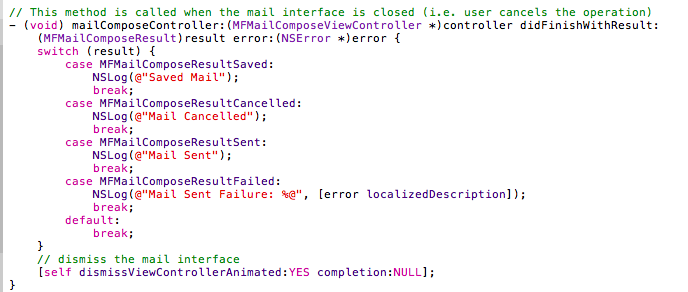
This method is invoked when the user cancels the operation and the mail composition interface is dismissed. The result parameter tells you the result code when the mail composition interface is dismissed. In a real-world application, the app should display any errors that may occur if the app fails to send the email message.

Linking with the Message UI Framework

If you try to build the application, you will notice that you will get build errors. The "MFMailComposeViewController" class is built-in within the MessageUI framework. 
To fix the compilation problem(s), you will need to add the MessageUI framework so that it is linked properly with your application.  In the Project Navigator, select the "SimpleEmailApp" project and then select "SimpleEmailApp" target under Targets.  Then, click "Build Phases" at the top of the project editor panel. Then, click on "Link Binary With Libraries" section. 


Next, click the "+" button and select the "MessageUI framework". After you click the "Add" button, Xcode will include the MessageUI framework. This should fix your error(s), and you can now run your application.  When you tap on the "Contact Us" button, it will display the email composition window with the pre-populated email content.

If you find this tutorial helpful, and would like to see more of these types of tutorials, then share a comment!  Or if you have any other suggestions, do let me know as well.  And follow me on twitter (@tasneemsayeed).
View more documents from tasneemsayeed.

Friday, June 5, 2009

How to Share Photos & Contacts on iPhone

One of the most intuitive and appealing applications for sharing photos and contacts on the iPhone is called Mover developed by Infinite Labs.  Mover was developed for the iPhone.  No need for pairing. It only requires an iPhone or iPod Touch to be connected via WiFi network.  Mover is available now for download for free on App Store.


Here is how it works:
  1. Download the Mover app from iTunes App store and open it
  2. Click the '+' sign to add items that you wish to share with the other iPhone or iPod Touch
  3. Mover will display the options to "Add Image" or "Add Contact"
  4. After selection is made, an icon will appear on your iPhone or iPod Touch screen
  5. It will display the photo or contact along with an "arrow" (indicates the other iPhone device)
  6. Just slide the icon you want to transfer (towards the other device)
  7. To delete any item, select 'Edit' to remove the item (note: it does not remove it from the iPhone)
The photos and contacts transferred are automatically saved in the camera gallery and addressbook, respectively.

The transfer of photos may take some time depending on the image size, but the transfer of contacts is very fast and it even sends the contact's photo.

The Mover app is very intuitive and fun to use, but obviously only works on an iPhone or iPod Touch device.  You may want to take a closer look on YouTube

If you found this article useful, please add a rating, comment and retweet!

Friday, April 10, 2009

8 Nifty Twitter Mobile Clients

For any Twitter newbie, it can be a very daunting task when you first start twittering to figure out which Twitter client of the numerous others is appropriate for a specific mobile platform.  You quickly discover that it is hard to find a way to follow all of your Twitter updates without being interrupted constantly by a flow of updates. While you can update your status via SMS, keeping track of your friends and followers is difficult to do particularly while you are on the go.  Due to the huge success of the iPhone launch, there is no shortage of the number of Twitter clients out there on the iPhone or even other emerging platforms such as Android.  Below is a concised list of the more popular mobile Twitter applications listed by platform.
  1. Tiny Twitter (Java-enabled phones, Windows Mobile, Blackberry platform)                          
  2. TwitterBerry (Blackberry)
  3. CeTwit (Windows Mobile)
  4. Twitteresce (Java-enabled phones)
  5. Twibble (Java-enabled phones)
  6. Twinkle (iPhone)
  7. Twidroid (Google Android G1)
  8. Tweetie (iPhone)
Tiny Twitter is a twitter client for Java-enabled, Windows Mobile and Blackberry phones.
Features:
  • Set automatic update interval
  • Click update from [menu] to fetch friends timeline
  • Send tweets/direct message
  • Hide friends temporarily
  • Collapse tweets, hide user's image and truncate text to get more real estate
  • Retrieve direct message
Overall: good for mass-market phones, but other Twitter clients have better UI (see below)

Twitterberry is a mobile Twitter client for posting updates for the Blackberry platform.

Features:
  • Pictures support via TwitPic
  • ping.fm support
  • Timeline updates while device is sleeping
  • Audible/vibrate alerts
  • Retweet
  • Favorite
  • Delete
  • Picture support via TwitPic.com
  • Refresh timelines
  • Configurable auto-updating of timelines
  • Longer list of tweets: 200
  • View & reply to tweets and direct messages
  • Favorite and delete tweets from any timeline
  • View friends list
  • Allow overflow of 140 characters when typing your tweet
  • Optimize menu screen so most commonly used choices are easy to access
  • URLs in tweets can be selected and opened in your Blackberry browser
  • User customizable default application entry screen
  • BES connection support
Overall: best app for Blackberry

CeTwit is a Windows Mobile Twitter client written in C# leveraging the .net compact framework.


Features:
  • Timeline display
  • Account storage
  • Status updates
  • Direct Messages
  • Click to reply
  • Automated refresh
  • Smartphone support
  • Avatars in timeline
  • Local caching of avatars
  • Squeezer support
  • Relative timestamps
  • Follow/unfollow
  • Pictures support via TwitPic
  • ping.fm support
  • Timeline updates while device is sleeping
  • Audible/vibrate alerts
  • Retweet
  • Favorite 
  • Delete
Overall: Nicer UI compared to Tiny Twitter and fully featured, except for URL shortening

Twitteresce is a Twitter client for Java-enabled phones with a slick background for text updates.
Features:
  • Displays all status updates
  • Retrieve and delete tweets & direct messages
  • Autoupdate
  • Refresh rate
Overall: basic tweeting functionality for Java enabled phones, but lacks several nifty features


Twibble is a location-aware Twitter client that uses GPS on Blackberry Curve 8330 or Symbian phones like Nokia E71 or N95

Features:
  • Post Messages
  • Auto refresh
  • Notifications
  • Uploading of photos via TwitPic
  • Themes
  • Integrated tweets & direct messages displayed in a single list
  • Open web URLs within tweets
  • Retweet
  • Quick @replies
  • Follow users
  • Mark tweets as favorite
  • SSL support
  • Cancel network requests
  • Location-based (shows location of friends on a map) via GPS
Overall: good for Java-enabled phones or GPS supported phones

Twinkle is an iPhone client that has location aware features.


Features:
  • Discover, connect and send messages to people nearby
  • Upload photos and update your status on your Twitter account
  • Using the power of geolocation, join the discussion with the people around you
Overall: cool UI and looks slick on the iPhone

Twidroid is a Twitter client for the Google Android phone.

Tweetie is a full featured Twitter client for the iPhone and iPod Touch.

It offers everything you would want from your timeline to trends - all within an incredibly polished user interface, great performance and ease-of-use.
Features:
  • Handles multiple Twitter accounts
  • View  your timeline, replies and direct messages
  • Manage favorites
  • Browse friends and followers
  • Post new tweets, Retweet
  • Reply directly to tweets and send direct messages
  • Follow and unfollow people
  • Block/unblock users
  • Navigate reply chains
  • Inline web browser
  • Integrated with TwitPic for posting photos
  • Update Twitter location
  • Post tweets w/auto URL shortener
  • Uses secure connection (https)
  • View Twitter trends and custom searches
  • Nearby searching
  • Links to StockTwits
  • Optional landscape keyboard
  • Themes
There are several other Twitter clients that were developed earlier for the iPhone such as Twitterific, Twitterfon, Twittelator and Twinkle (above).  However, of all of them, my favorite one is Tweetie for the iPhone. Tweetie includes four main buttons: Tweets, Replies, Messages, Favorites.  Under More, you will find My Profile, Following, Followers, Trends and Search.  You can easily view @replies, see URL links directly in the inline browser, retweet messages, turn links in the browser into short URLs and much more. Perhaps, the only thing missing is that it doesn't let you browse the web and shorten a URL on the fly.  Tweetie is definitely a solid app overall and is probably the most full-featured Twitter client available for the iPhone to date.

What is your favorite Twitter mobile client? Please let me know in your comments.  If you found this article interesting, feel free to retweet (upper left corner) and follow me on Twitter.


Thursday, March 12, 2009

Watch March Madness Live On Your iPhone

This year, you do not have to miss the NCAA tournament, March Madness, while you are on-the-road as you can see it streaming live via your iPhone starting next Thursday.


The March Madness iPhone application was developed by MobiTV and is available to download from iTunes for $4.99.  In addition to streaming the games, it provides real-time game scores, stats and more.  However, the only drawback is that you will need to connect your iPhone or iPod Touch to a WiFi connection so you are limited to where you can watch the game.


Tuesday, March 10, 2009

First Official American Idol iPhone App Lacks Text, But Provides Bios, Videos, MyRanking And More

It is rather disappointing that the first official American Idol iPhone application has launched just in time to watch the final 13 round in season 8, but lacks the ability to text for casting votes directly from the app - a key "must-have" feature that die-hard fans are likely to notice almost immediately.  
The American Idol application is available today for both the iPod Touch and the iPhone for $1.99 and provides bios, news and behind-the-scenes videos of the contestants. However, users who want to access the videos of the recent performances are redirected to a link to iTunes for downloading the music for an additional $.99!  Zumobi, who is building the application in collaboration with FreeMantleMedia Enterprises, 19 Entertainment and Fox,  plans to allow "Text" in a future version of the app.

Bookmark and Share