Showing posts with label mobile. Show all posts

Tuesday, April 26, 2016

Just Published: MoovieSurf Android App for easily searching for movies

The MoovieSurf Android app allows users to quickly search for movies.


It allows the user to do a "live list" search for a movie within a movies network given a search term such as "the", "man", "furious", etc. or for a specific movie name.
"Live list" search means the list is updated as the user types.

If the search term or movie is found, it displays a list of movie thumbnail images along with the movie title and the year released in a card layout.

If the user selects a movie from the displayed list, then a detailed description of the movie, including the movie cast, critics score, user score, rating and the runtime for the movie is provided. A synopsis or description of the movie is also provided if available.


You can download the FREE MoovieSurf Android app which is available in the Google Play store from http://bit.ly/1WRYcY1.
Try out the MoovieSurf app, rate it and add a review!  Feel free to add any comments :)

View more documents from tasneemsayeed.

Tuesday, March 17, 2015

iOS: How to Send Asynchronous Requests

Many of the applications we build often have to fetch some sort of data through the network. While there are a number of ways one could fetch the data in our iOS application and a number of networking libraries available, it is still useful to understand how NSURLConnection actually works.

Step #1:
Need to have your class to conform to the NSURLConnectionDelegate protocol and declare a var to store the response data

Step #2:
Implement the NSURLConnectionDelegate protocol methods

Step #3:
Create an instance of NSURLRequest and NSURLConnection to kick off the request

In Step#1, when you class conforms to the NSURLConnectionDelegate protocol, it means that your class will need to implement all the required methods, which takes you to Step#2.
The idea is that when you kick off the request in Step #3, you want to be notified of events that will happen such as when the response comes back, and need to handle them appropriately.


Step #1:
Within the class that you will be using NSURLConnection, specify in the header file that it conforms to the NSURLConnectonDelegate protocol. Also, declare an instance variable  for holding the response data.


Step #2:
Next, implement the NSURLConnection protocol methods


Step #3
Now, we are finally ready to perform the asynchronous request.
Let's start by creating an instance of NSURLRequest, and assign it to the URL.  Next, create an instance of a NSURLConnection and call the initWithRequest method, passing it your NSURLRequest.


After the NSURLRequest is dispatched and the request is handled, the callback handler, didReceiveResponse will be invoked to indicate that the server has responded. Then, the callback handler, connection:didReceiveData will be invoked. This is where you will append the new data to the instance variable you declared.  In connectionDidFinishLoading callback is invoked when the request is complete and the data has been received, so you can parse the response data and do whatever you want to do with the data.  That's all there's to it!

In the next blog post, I will cover how to send an asynchronous request using NSURLSession and Blocks!

Tuesday, May 6, 2014

How to Send Email Within Your iPhone Application

This article provides a tutorial to help you send an email from inside your iPhone application using the iPhone SDK built-in APIs.
The iPhone SDK provides the built-in MessageUI framework, which greatly simplifies the implementation of email functionality within an iOS application.

Creating a Simple Email UI

Create a simple app with a UI View Controller and call it the name, "SimpleEmailAppViewController". Then, add a button to the UIView by dragging it from the interface builder, and rename the button title to "Contact Us".

When the user taps the "Contact Us" button, the app will display the email user interface.

Making Connections to the User Interface

In order to make the connections from the "Contact Us" button to an action, you need to select the SimpleEmailAppViewController.xib file from the Project Navigator then go to the Interface Builder. Switch to the Assistant Editor while hiding the Utility area. Once this is done, the interface and its corresponding code are displayed side by side. Next, press and hold the key and click the "Contact Us" button and
drag it towards the "SimpleEmailAppViewController.h. As you place the pointer just below @interface and before the @end, and as you release the mouse button, you will notice a prompt that allows you to insert an outlet and action.
Select "Action" for "Connection" and enter "sendEmail" for "name" as shown below.

The event can be kept as "Touch Up Inside". When the user clicks the "Contact Us" button and lifts up the finger inside the button, it will result in invoking the "sendEmail" method.  Once, you click Connect to confirm the changes, Xcode automatically adds the method declaration into "SimpleEmailAppViewController.h" file.

Implementing the Email Interface

In "SimpleEmailAppViewController.h", implement the "MFMailComposeViewControllerDelegate" as shown below.

In "SimpleEmailAppViewController.m", implement the "sendEmail" method. Also, add the implementation for the delegate method, "MFMailComposeViewControllerDelegate".  Note that we will also be utilizing the built-in API from the iOS SDK called "MFMailComposeViewController".
The "MFMailComposeViewController" class provides a standard interface to allow the editing, and composing of an email message. You can use this view controller to display a standard email view within your iOS application. We populate the fields of this view with initial values including the recipient email, subject and body of the message.

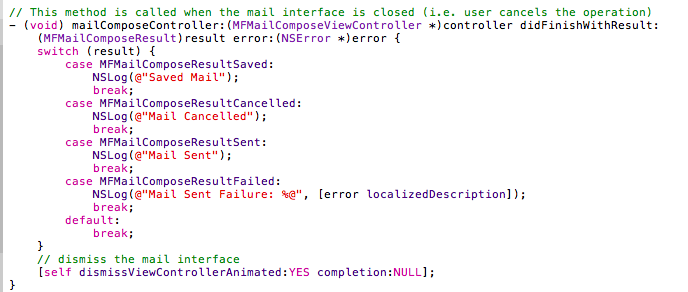
This view controller class also includes the following delegate method:
(void) mailComposeController:(MFMailComposeViewController *)controller 
  didFinishWithResult:(MFMailComposeResult)result error:(NSError *)error

This method is invoked when the user cancels the operation and the mail composition interface is dismissed. The result parameter tells you the result code when the mail composition interface is dismissed. In a real-world application, the app should display any errors that may occur if the app fails to send the email message.
Linking with the Message UI Framework

If you try to build the application, you will notice that you will get build errors. The "MFMailComposeViewController" class is built-in within the MessageUI framework. 
To fix the compilation problem(s), you will need to add the MessageUI framework so that it is linked properly with your application.  In the Project Navigator, select the "SimpleEmailApp" project and then select "SimpleEmailApp" target under Targets.  Then, click "Build Phases" at the top of the project editor panel. Then, click on "Link Binary With Libraries" section. 


Next, click the "+" button and select the "MessageUI framework". After you click the "Add" button, Xcode will include the MessageUI framework. This should fix your error(s), and you can now run your application.  When you tap on the "Contact Us" button, it will display the email composition window with the pre-populated email content.

If you find this tutorial helpful, and would like to see more of these types of tutorials, then share a comment!  Or if you have any other suggestions, do let me know as well.  And follow me on twitter (@tasneemsayeed).
View more documents from tasneemsayeed.

Saturday, May 18, 2013

Google I/O 2013: An In-Depth Developer's Perspective


In comparison to last year's Google I/O featuring the spectacle augmented reality Google Glass  announcement via a breathtaking sky-diving presentation, this year's Google I/O may have seemed to lack luster with no new hardware.

Nonetheless, Google I/O kicked off a record 3.5 hours Keynote with a heavy focus on software and services. The Google I/O Keynote discussed services and feature upgrades for both Android and Chrome. If you were expecting a brand new Android phone or tablet announcement, then you may have been disappointed. However, a major takeaway was a unified user experience for Chrome and Android platforms through shared services.

According to Google, Android was at 100 million activations in 2011. And, it was at 400 million in 2012.  And now in 2013, Google released the numbers for the Android activations at an incredible 900 million!   Now that's no small feat...

A huge applause from the audience came when Google mentioned the introduction of Android Studio IDE based on IntelliJ!  The Android Studio IDE tool has more options for Android development making the process faster and more productive. A live layout was shown that renders your app while you are editing it in realtime. It allows you to see a variety of device layouts (i.e. different form factor phone devices and tablets). Refer to TechCrunch's excellent review on Google Launches Android Studio and New Features for Developer Console Including Beta Releases and Staged Layouts for further details.

There were several other significant announcements made at Google I/O including:

  • Google Maps gets a complete overhaul and is released as part of Google Play Services.  Three new Location APIs introduced include:
    • Fused Location Provider API utilizes all of the communications sensors in the phone including WiFi, GPS and Cell network while significantly saving battery life. This is a new service that greatly improves any application that uses location services.
    • Geofencing API allows apps to inform the user entering or exiting a configured virtual fence. The API allows each app to define up to 100 geofences simultaneously. Apps utilizing this service will provide better battery life and performance.
    • Activity Recognition API utilizes the device capabilities of the hardware and machine learning to determine whether the user is walking, cycling or driving. This allows apps utilizing the service to adjust their behavior depending on the user's mode of transport. It is done in a very battery efficient way as no GPS is required.
  • Google+ Single Sign-in API is a cross-platform Sign-in API.  Fancy was used to demo during the Keynote that if you find a cool website that you like, you can sign-in with Google+ and then you will automatically be asked if you would like to install it. If you indicate yes, the the app will download and log you in automatically on your current device and other Android devices on your account - now that's very cool!
  • Google Cloud Messaging (GCM) for Android gets an overhaul. GCM is a service that allows you to send data from your server to your users' Android-powered device, and also to receive messages from devices on the same connection. The new features to GCM include:
    • Faster, easier GCM setup
    • Upstream messaging over XMPP. GCM's Cloud Connection Service (CCS) lets you communicate with Android devices over a persistent XMPP connection. The primary advantage of CCS are speed and the ability to receive upstream messages (i.e. messages from a device to the Cloud).
    • New API for Synchronizing Notifications. Maps a single user to a notification key, which you can then use to send a single message to multiple devices owned by the user.
  • Google Play Music All Access was launched in the US at I/O. It allows you to buy a music subscription from Google and costs $9.99/month and comes with a 30 day free trial. It allows you to explore millions of music tracks so it seems great for music discovery than its competitors (i.e. Spotify, Pandora). It is a simpler on-demand-meets-radio service with various personalization features, and works on phones, tablets and web browsers. From a design and UX perspective, it makes it easy to switch between the hands-on and hands-off experiences. If you are not sure of what you want to listen, you can just hit "Listen Now" and start listening to something right away. And, when you want to search on Google's huge on-demand catalog, you have that option as well.
  • Google Search. Google I/O 2013 marked the "end of search as we know it". Google announced that it is looking to change the way users go about finding information by expanding its voice search capabilities and through its various services such as Google's Knowledge Graph and Google Now with a credo the company has labeled "answer", "converse" and "anticipate". In other words, the company's core product will eventually respond better to naturally phrased questions. Anticipate means that Google Search will be able to guess what information users need the most and provide it for them easily via its Google Now service. The Google Now service pulls information from across Google services to act as a personal assistant of sorts by offering information on users' commutes, appointments and news from their favorite sources in the same place. Conversational Search was announced to be coming to all desktops and laptops via Chrome.
  • Chrome. Google announced that today there are 750+ Million active users of Chrome and that Chrome is increasingly used on mobile. Chrome design goals are: speed, simplicity and security. Google's Sundar Pichai said, "The same capabilities that you're used to using for Chrome on a desktop are going to be coming to Chrome on Android." Thanks to WebGL and Web Audio APIs, you will start seeing quite impressive web experiences including games and rich interactive environments that were typically limited to the desktop environment.
    • Better Web Imaging. Google compared JPEG vs WebP images. The quality of the image was indistinguishable, but it was about two-thirds in size (i.e. 31% reduction in file size). This will significantly improve the load times on websites as well as help users to not exceed their data plan limitations. Furthermore, WebP supports animated images as well.
    • Better Video compression.  Google compared H.264 vs VP9. It was noted that the quality of the VP9 video is the same as H.264. However, the size of VP9 comes in at less than half the size (i.e. 63% reduction in file size).
  • mCommerce. Google reported that when it comes to shopping on your phone, the percentage of people that come to the purchase screen and then get out from there is incredibly high in the 90%. Google made 3 key announcements around mCommerce:
    • Consumer launch for pay by Gmail which is rolling out slowly with initial rollout in US
    • Two new APIs announced for developer launch:
      • Google Wallet Object APIs. The vision is to digitize whole Wallet by allowing insertion of any kind of Objects into Google Wallet
      • Google Wallet Instant Buy for merchants selling physical goods. The goal is to allow consumers to make purchases within 2 clicks thereby improving the user experience.
  • Google+  Google introduced 41 new Google+ features at I/O!  First of all, Google+ gets an overhaul on its design. It is a multi-column design where its width will scale depending on the device that the user is on. It includes animations, flip and fade. It can do image analysis, recognize the image and hashtag it automatically.
  • Google Hangouts is now a standalone app that will work on the web desktop, Android and iOS all announced starting at I/O. This will provide an on-going conversation within the hangout and doesn't end when you sign off. Also, RealTime Communication, that is, group video is available at no charge.
  • Google Photos: Google announced earlier that in addition to unlimited backup of all of your standard sized photos, it will now give you 15 GB of storage for full-sized images. Google also announced machine learning algorithms that help to create a highlight reel for all your photos. The service will check all your photos in the album for blurriness, smiles and several other criteria (learnt by hundreds of actual human photographers, and produces a highlight reel.) Google also introduced an "auto-enhance" feature that will instantly adjust tonal distribution, red-eye reduction, skin softening, noise reduction and several other criteria to automatically enhance the picture. And, finally, Google introduced a new "Auto Awesome" mode. That is, if you take a burst of photos, it will make an animated gif out of them. If you take a series of screenshots, and if some are dark or if someone is smiling in one, but not the other, it can make a composite image similar to what the Galaxy S4 can do without the user having to activate that setting. And, that sounds cool!  It can also handle screenshots in "Motion", HDR, and panoramic photos.
And, no developer review would be complete without the mention of the Developer Sandbox, which occupied 2 floors, with dedicated ones for Android, Wallet, Chrome, standalone ChromeBook Pixel display, Google+, Photos and Google Play. And, not to forget Google Glass had an extra large sandbox which was often crowded with spectators!  Google started shipping an early version of Google Glass known as Explorer mostly to a couple of thousand developers who had requested them at last year's Google I/O conference - forked over a hefty price of $1500!  
I was fortunate to explore Google Glass and the experience was truly amazing! Glass is not like wearing a laptop on your face, though it does have a 12 GB of usable storage (16 GB total), synced with Google Cloud. Glass is more like augmented reality spectacles, but without lenses. Its lightweight frame rests on the ears and nose, suspending a small prism at the upper right corner of the wearer's field of vision. Glass has a tiny touch pad built into one earpiece and a microphone to pick up voice commands. Interestingly, the earpiece uses "bone conduction" to deliver sounds by vibration against the wearer's head. You can speak aloud to get information  or tell Glass to "take a picture" or "take a video" (up to 10s  snippets). You can ask questions like "Google find me a restaurant" and see the results in "Knowledge cards".You can also send texts and make phone calls. If you swipe toward the back, you can see Google Now cards for flight, traffic and other information.  In summary, Google I/O 2013 showcased several interesting innovations across Google products.

If you found this article useful or want to share your developer perspectives on Google I/O 2013, feel free to share your comments below, follow me by clicking on the upper left hand corner and/or follow me on Twitter @tasneemsayeed.

Tuesday, April 2, 2013

Best Practices for Mobile App Development on Android

Designing and building apps that look great and perform well on as many devices ranging from smart phones to tablets is crucial to ensure an optimal user experience.
At the recent DevFest Silicon Valley event held at Google on March 15th, I had presented a talk on Best Practices for Mobile App Development on Android.  The talk focuses on the Golden Rules & Best Practices of Performance including how to keep your apps responsive, how to effectively implement Background Services, tips for improving the performance and scalability of long-running applications, and briefly on Best Practices for User Experience and concluding with Benefits of Intents and Intent Filters.  For further details, please refer to the slides attached below.


If you enjoyed this article, you may want to follow me (@tasneemsayeed) on Twitter. I always announce significant new blog posts and interesting mobile topics via a tweet. You can also subscribe to this blog.  Feel free to post any comments that you may have below.
View more documents from tasneemsayeed.

Friday, May 6, 2011

Just Released: FREE Sudokroid (Sudoku Game Puzzle) in Android Market

More than 10 billion apps have been downloaded since the launch of the Apple (NSDQ: AAPL) App Store—the majority of them via iPhones.  As of March 2011, 37 percent of mobile consumers who owned a smartphone had a device with an Android OS. Apple’s iOS, claimed by 27 percent of consumers, is now outpacing Blackberry, which has 22 percent of the market.


It only seemed appropriate that one of the first mobile apps I decided to release was an Android app, Sudokroid, to the Android Market. Sudokroid is a logic-based number placement puzzle, which initially starts with a partially completed 9x9 grid. The game provides the player with the options to start a "New Game", "Continue" an existing game, an "About Game" option to get further details for playing the game, and finally "Exit Game" to exit from the game.  


When the player selects a "New Game" , it will let the player select the difficulty level from a choice of 3 levels: "easy", "medium" and "hard". A new game grid is displayed, partially filled, while splendid soothing music is playing in the background!  If "Continue" is selected, then the game continues from the previous game state.


The goal of Sudokroid is to fill the grid so that each row, each column and each of the 3x3 boxes contains the digits 1 to 9 exactly once.  Hints are provided to help in the selection, and if a selection results in "no move", then the player can go back to the previous tiles and revisit some of the prior moves.

You can download the game for FREE from the Android Market from http://bit.ly/mO8qfE.  Be sure to rate it and tweet or leave me a comment !  Stay tuned for more apps in the pipeline!